
USPS Forward
USPS (United States Postal Service) is the U.S. federal government’s postal operator, providing a full suite of mail and package delivery services across the United States.
Courier Partner ID: 419
Services Integrated
- PUDO - Pickup and Drop
- Order Creation
- Order Cancellation
- Tracking via Polling
- Label Generation
Steps to set up USPS Forward on Clickpost
- Firstly, complete the process of setting up a courier partner account by following the steps: https://docs.clickpost.ai/docs/create-an-courier-partner-account
- Post #1, you'll be greeted with the following screen
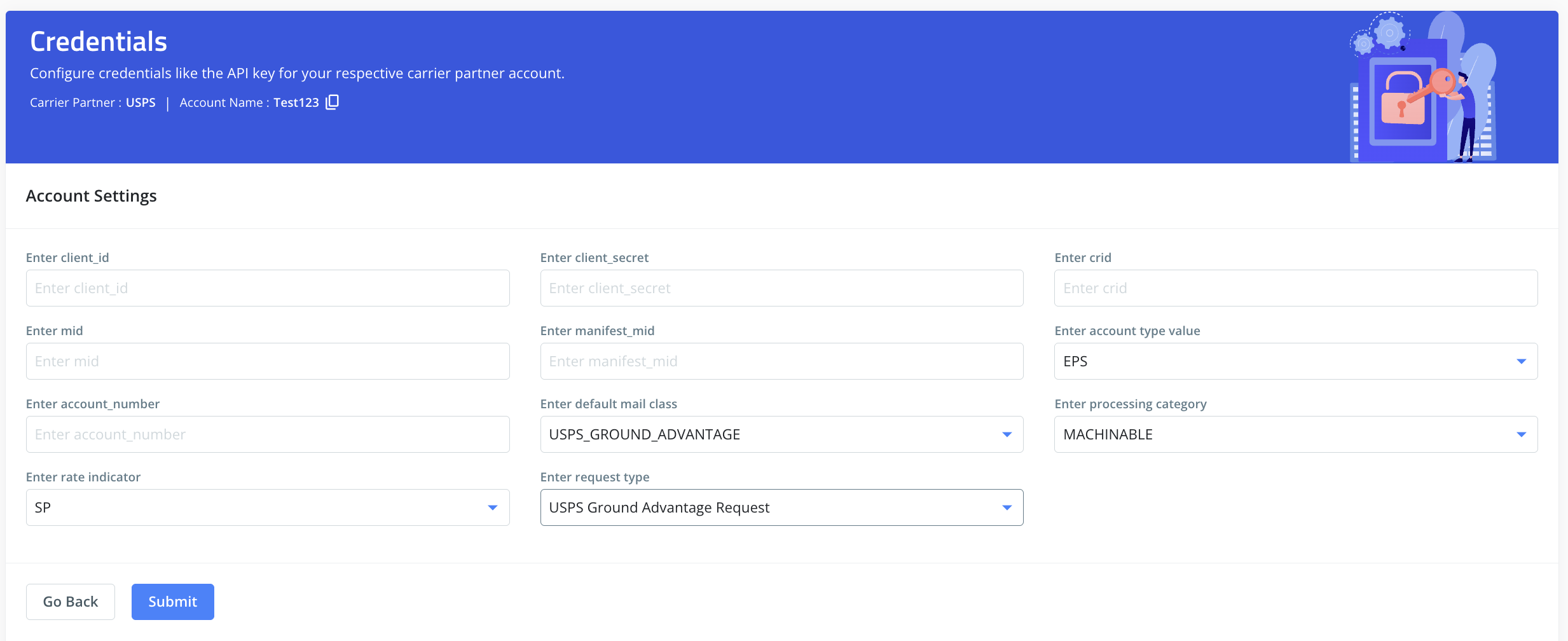
- If you wish to only track your shipment via Clickpost, you can directly skip the next step and click on Submit with empty fields. This allows shipments to be tracked via Clickpost without any Credentials.
- If your use case is Manfest/Order booking, then you would need to configure below fields as follows:
Here, you can add the credentials as shared by the USPS team. To give you a brief:
| Name | value | description |
|---|---|---|
Enter client_id | The USPS team shares this customer Identifier, which can also be fetched from the USPS dashboard. (Also known as Consumer key) | |
Enter client_secret | The USPS team shares this customer Identifier, which can also be fetched from the USPS dashboard. (Also Known as Consumer Secret) | |
Enter crid | A customer Identifier is required for the Order Creation API. USPS Poc or the Relationship Manager will be able to provide it. | |
Enter mid | Merchant Identifier or similar unique ID for the account. | |
Enter manifest_mid | Merchant Identifier is specifically used for manifest generation. | |
Enter account type value | EPS | The type of account configured |
Enter account_number | Your primary account number with the carrier. | |
Enter default mail class | The default shipping service to be used. Possible values:
| |
Enter request type | The specific type of request or service being configured. Possible values:
| |
Enter processing category | Describes how the package can be processed Possible values:
| |
Enter rate indicator | An indicator related to the applied shipping rate or pricing. Possible values: ( 3N, 3R, 5D, BA, BB, CP, CM, DC, DE, DF, DN, DR, E4, E6, FA, FB, FE, FP, FS, LC, LF, LL, LO, LS, NP, OS, P5, P6, P7, P8, P9, Q6, Q7, Q8, Q9, Q0, PA, PL, PM, PR, SN, SP, SR ) |
- Once done, kindly press Submit and you have set up USPS on Clickpost.
NOTE:
- Pre-assigned AWBs: No need to configure pre-assigned AWBs. AWBs are generated by USPS in real-time during the Order Creation API call and returned back in response.
- Labels: USPS generates a label for its orders returned in the Label Generation API response to the customer.
Updated 7 months ago
Did this page help you?