
Shipmozo
Shipmozo is a e-commerce carrier aggregator last-mile Logistics company providing solutions to e-commerce brands to book orders, track shipments, and coordinate deliveries efficiently.
Courier Partner ID: 563
Services Integrated
- Async Order Creation
- Order Cancellation
- Label Generation
- Tracking via Polling
- Tracking via Webhook
Steps to setup Shipmozo on Clickpost
-
Firstly, complete the process of setting up a courier partner account by following the steps: https://docs.clickpost.ai/docs/create-an-courier-partner-account
-
This is the screen that you'll get :
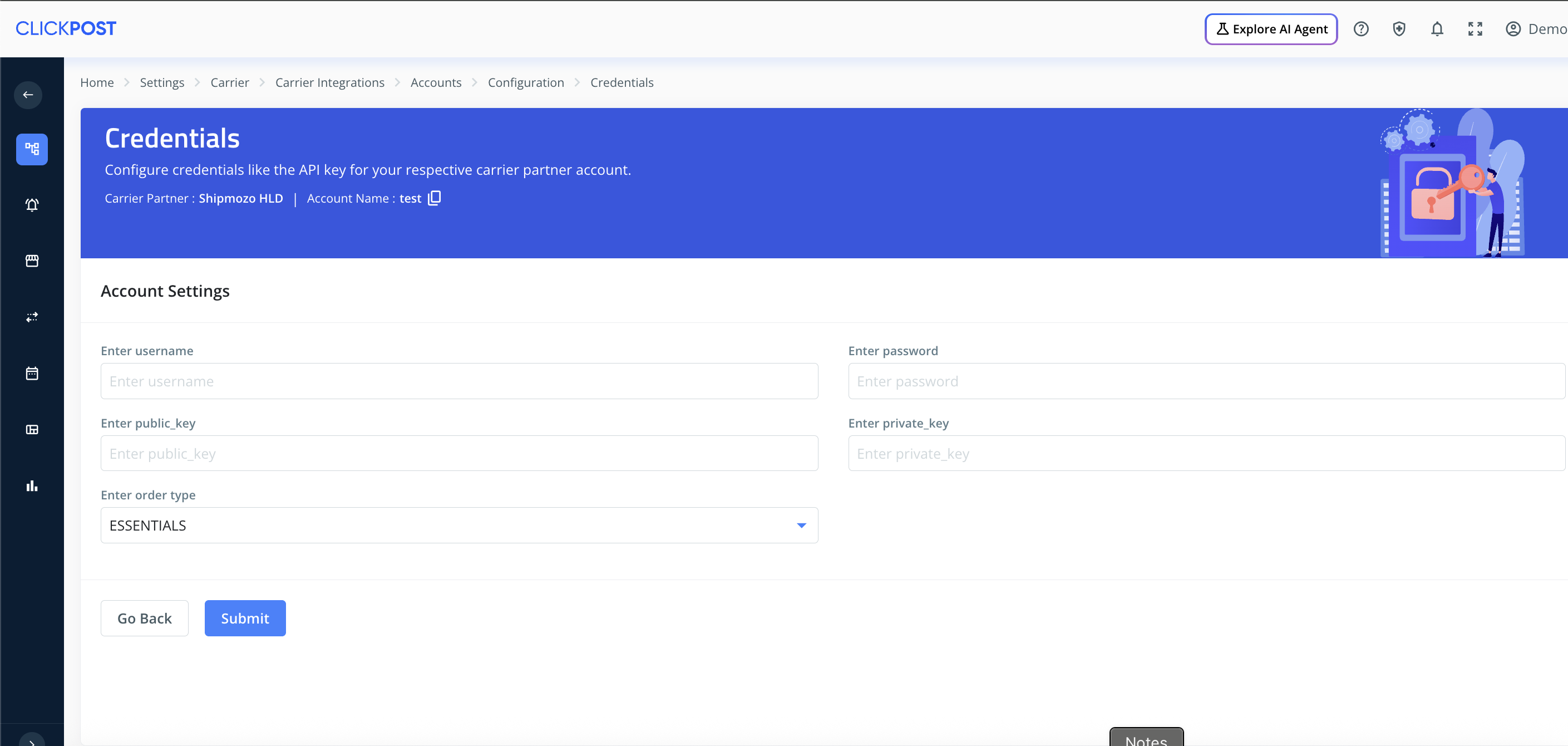
- Here, you can add the credentials as shared by the Shipmozo team. These details will be shared with you by your Shipmozo relationship manager. To give you a brief:
- Username & Password → Required to generate the Bearer Token via the Login API.
- Public Key & Private Key → Required in API requests for authentication.
- Order Type → Required to mark order type preference.
- Once done, kindly press Submit, and you have set up Shipmozo on Clickpost.
Note:
- AWB Generation: No need to configure pre-assigned AWBs; AWBs are generated by Shipmozo in real-time during the order creation API call and returned in response.
- Vendor Code flow: carrier supports the Creation of warehouse IDs (Vendor codes) per unique address. We have added this support in Clickpost integration as well. If you have list of warehouse IDs Follow the below steps to configure it in clickpost before order creation starts.
Vendor Code Flow Setup
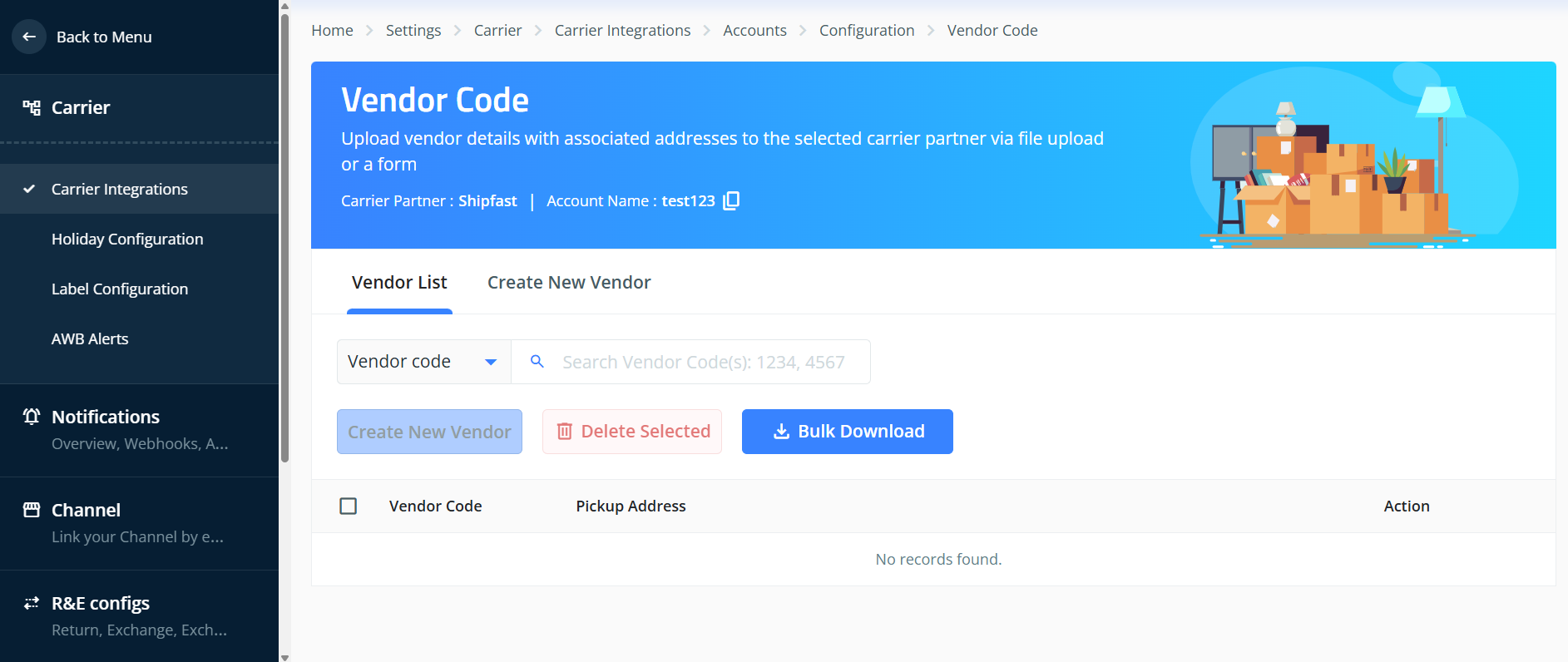
- Firstly, go to the Vendor Code Setup in your Shipmozo Account, where you can configure the Vendor code list aka the warehouse IDs in Clickpost. Now you can go to the Create New Vendor to configure. The Screen you will see is this:
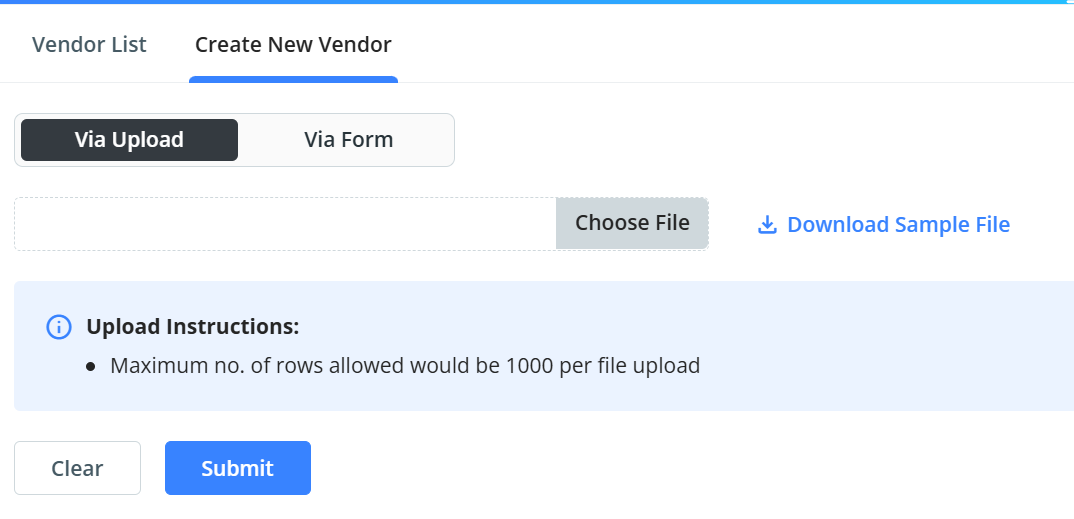
- Next, you can upload the vendor codes in our dashboard via 2 ways, firstly via the file method, where you can download a sample file, fill in the necessary details, and upload it.
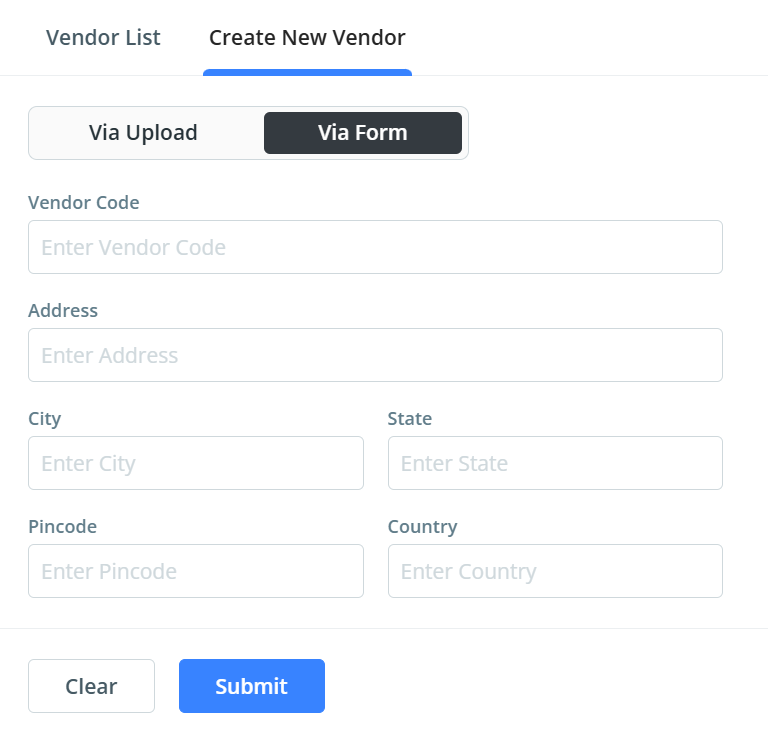
- Secondly, you can upload via the form for individual vendor codes, where you can enter the vendor code and the details, and click on submit. The screen you will see for this is:
- You can also configure the Vendor code via the API method, where we have a "vendor_code" field in our payload, in which you can send the vendor code to ClickPost.
Now you can now start using Shipmozo with Clickpost APIs.
Updated 7 months ago
Did this page help you?